
Get the job done with a pro
From training to full-service marketing, our community of partners can help you make things happen.
About Mailchimp for Shopify Syncing
Mailchimp for Shopify automatically syncs your customer, order, and company data to your Mailchimp audience so you can create targeted marketing campaigns and personalized product recommendations.
In this article, you’ll learn how data syncing works between Mailchimp and Shopify.
Note
To learn how to connect or disconnect your Mailchimp and Shopify accounts, check out Connect or Disconnect Mailchimp for Shopify.
How does contact synching work?
Contact syncing behaves differently depending on whether you are performing an initial sync or an ongoing sync.
Initial sync Before the initial sync, you’ll select a Mailchimp audience. We sync your existing Shopify customers to this audience and include their subscription status.
- New contacts: Shopify customers who don’t exist in your Mailchimp audience are added.
- Existing contacts: If a contact exists in Mailchimp and is already opted in to marketing, we update their Shopify status to "subscribed," regardless of their previous status in Shopify.
Once you’ve completed the initial data sync you can turn on syncing for SMS subscribers. You need an approved SMS Marketing program to sync subscribed SMS contacts from your Shopify store. To learn more, check out Set Up Your SMS Marketing Program.
Note
SMS subscribers are synced from Shopify to Mailchimp only.
Which Shopify events sync to Mailchimp?
Shopify shares customer events with Mailchimp to help you trigger marketing automations. These events include:
- product_viewed
- search_submitted
- product_added_to_cart
- product_removed_from_cart
- cart_viewed
- payment_info_submitted
- checkout_started
- checkout_completed
- collection_viewed
To use these events, check out Create a Marketing Automation Flow and All the Marketing Automation Flow Triggers.
When does my data sync?
Most data fields sync in near real-time. The discount code field syncs every few hours. You can trigger a manual sync at any time from the Mailchimp app in your Shopify admin.
Continuing syncs
After the initial sync, Shopify sends updated data to Mailchimp in near real-time. If a customer changes their information or subscription status in Shopify, Mailchimp reflects those changes automatically.
Note
Shopify customer events that are shared with Mailchimp for Shopify will be limited if Shopify’s GDPR or CCPA policies are enabled for your store.
How does B2B company syncing work?
If you are a Shopify Plus merchant, Mailchimp for Shopify syncs B2B company information from your Shopify Contacts to your Mailchimp audience.
Company data is synced as a merge tag called Shop B2B Company. You can use this merge tag to:
- Identify which contacts belong to specific companies.
- Create segments based on Company information.
- Send targeted marketing campaigns to all contacts associated with a single company at once.
Which Mailchimp events sync to Shopify?
Mailchimp for Shopify syncs your customers' email and SMS activity back to your Shopify store. This includes:
- email_received
- email_opened
- email_clicked
- sms_received
- sms_clicked
Analyzing these events helps you understand how Shopify customers interact with your marketing.
Can I sync Mailchimp contacts to Shopify?
Yes, you can choose to sync new contacts from Mailchimp to your Shopify store. When active, new contacts added to your Mailchimp audience are created as customers in Shopify.
To manage this setting:
- Navigate to your Mailchimp for Shopify dashboard.
- Click the Settings tab.
- Scroll to Create New Customers.
- Click Activate or Deactivate.
Activity logs
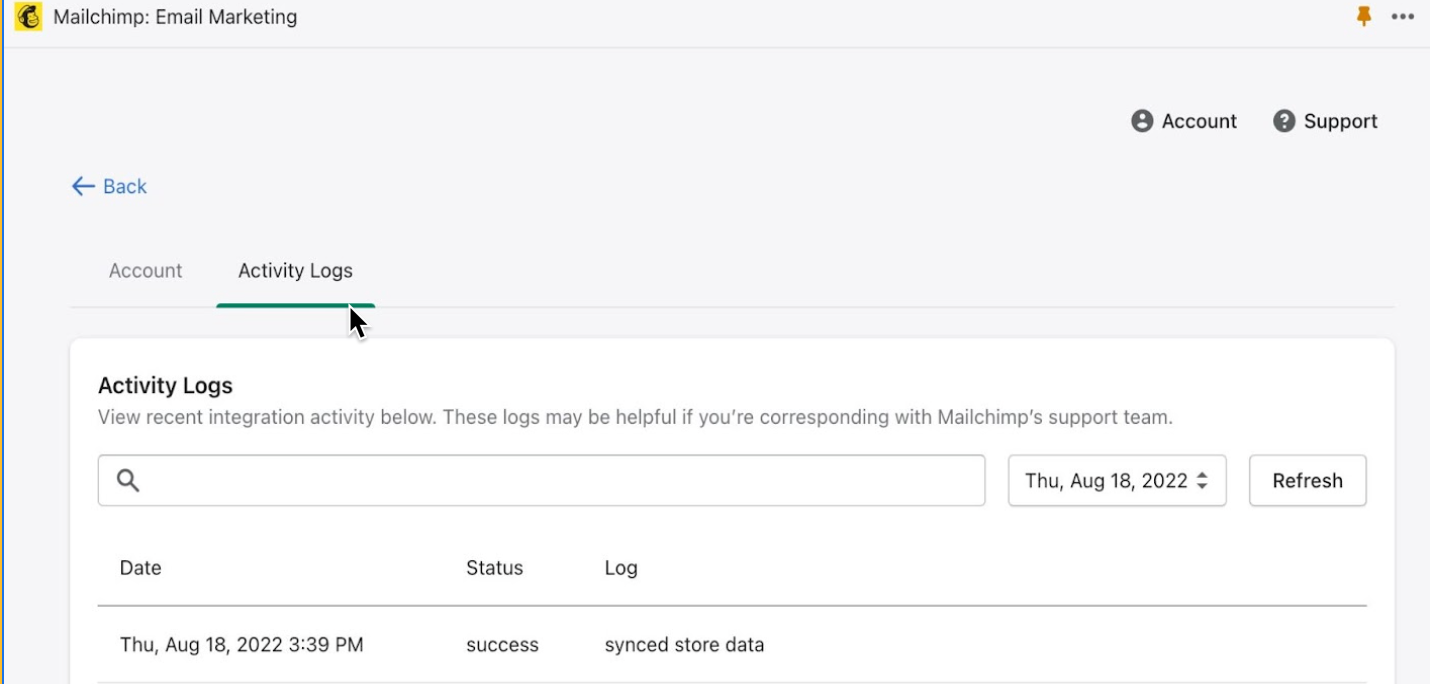
Mailchimp for Shopify’s activity logs show you recent integration activity. Use them to identify when a particular customer was updated or synced. To view these logs, click the Activity Logs tab from the Mailchimp app page in your Shopify store.
Mailchimp Site Tracking Pixel
Mailchimp for Shopify syncs specific customer events bi-directionally to allow you insights into actions your customers take in both Shopify and Mailchimp. When you connect your Shopify store to Mailchimp, the Mailchimp Site Tracking Pixel is automatically installed.
Customer events are synced between your Shopify store and your Mailchimp audience by default. You can enable or disable the Mailchimp Site Tracking Pixel from your Mailchimp for Shopify dashboard by navigating to the Settings tab. Then, scroll to Site Tracking and click Turn on or Turn off.
To learn more about the Mailchimp Site Tracking Pixel, check out About the Mailchimp Site Tracking Pixel.
Technical Support

Have a question?
Paid users can log in to access email and chat support.