MAILCHIMP RESOURCES
Smarter marketing starts here
From expert insights to step-by-step playbooks, find everything you need to show up more, sell more, and grow faster.

Reach more customers
-
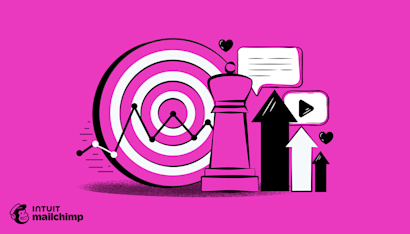
How to Create a Promotional Strategy for Brand Success
Articles
Transform your marketing efforts. Explore the core components of a successful promotional strategy and how to implement them for your brand.
-
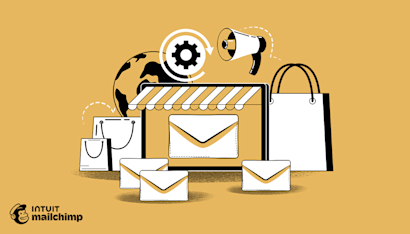
How to Grow Ecommerce Sales Through Email Marketing
Articles
Learn ecommerce email marketing techniques that get your messages opened and clicked by eager customers.
-
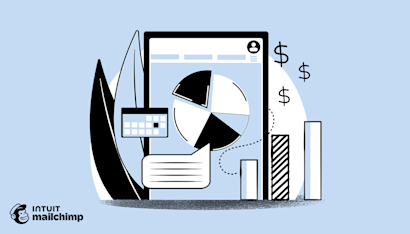
Are SMS Marketing Campaigns Worth the Investment? How to Calculate the ROI of SMS Marketing
Articles
Are SMS marketing campaigns worth it? Explore ROI stats and benefits of SMS marketing.
-

Quick Start Guide to Omnichannel Customer Engagement
Articles
Stop losing customers between channels. Discover effective omnichannel customer engagement strategies to create connected experiences and drive brand loyalty.
-
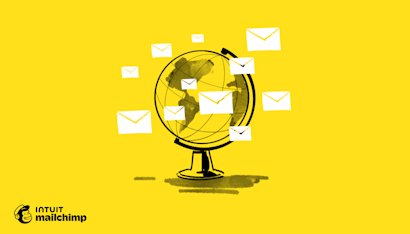
Build Better Campaigns: Email Marketing Mistakes to Avoid
Articles
Learn how common email marketing mistakes undermine performance and what to fix. This guide explains how to improve results through smarter strategy, timing, content, and process.
-
Grow Sales Through SMS Marketing for Ecommerce
Articles
Learn how you can grow your ecommerce sales through SMS marketing. All the steps you need to master e-commerce SMS marketing.
Our flagship reports
-
The Art of the Opt-In: Why List Building is Just the Beginning
Reports & Downloads
Get actionable insights to help build opt-in form experiences that balance customer expectations with business goals—so you can create lasting relationships and drive revenue growth.
-
The New E-Commerce Calendar: A Global Guide to Year-Round Shopper Engagement
Reports & Downloads
Get the report and regional insights to make the most of every Moment.
-
The Revenue Blueprint
Reports & Downloads
We polled 2,000+ mid-market marketers, then compiled the habits and strategies of top-performers to create a blueprint for driving revenue.
See how businesses use Mailchimp
-

How Earl of East Reaches Their Audience
Case Study
Creating a sense of community has always been at the core of their business, and that extends to their marketing.
-

Learn How the Internet's Favorite Astrology App Grew Its Business by Being Authentic
Case Study
CHANI’s director of marketing shares how the astrology brand maintains a meaningful, lasting presence in its subscribers’ inboxes.
-

How Yuool Grows Revenue—and Their Business
Case Study
The Brazilian shoe brand stays connected to their audience and keeps them coming back for more using customer journeys.
Events & Webinars
-
Get Holiday Ready with Marketing Success Season 2025
Rewatch our annual virtual conference, filled with insights, practical strategies, and tools to help you navigate peak season and beyond with confidence.
-
On-Demand Webinar
A Roadmap for Brand Growth
-
On-Demand Webinar
The 4 Revenue Pillars



More Events & Webinars
Join us for online and in-person events, conferences, and webinars.
Better Together: Mailchimp & QuickBooks
-

Integrate QuickBooks with Mailchimp to Maximize Sales Potential
Articles
5 ways customer insights, segmentation, and automation help you power your marketing and grow your business.
-

Neon Art Gets a Boost from Mailchimp and QuickBooks
Case Study
See how design studio Neon Workshops markets and manages finances so they can educate and inspire students, artists, and more.
-

How MovingWaldo Grew Revenue and Optimized Messaging
Case Study
With a mix of analytics, A/B testing, Mailchimp’s QuickBooks integration, and one‑stop shopping, MovingWaldo helps relieve the stress of moving homes.
Explore
Business Stages
-
Prep & Start
Learn to write a business plan, build a brand, and turn your ambition into a successful business.
-
Manage & Run
Off and running? Find tips to help you lead, manage, and make your business even better.
-
Grow & Scale
Whether you want to grow your team, your following, or your sales, we've got ideas.
Discover
Marketing Tactics
Mailchimp Academy
Take exclusive courses to learn new ways to use Mailchimp’s Marketing Platform and grow your skills.
Guides & Tutorials
Step-by-step videos and tutorials. Browse content by topic or search by feature.
Podcasts
Explore Mailchimp Presents, a collection of original content that celebrates the entrepreneurial spirit.
Mailchimp Experts
See popular services and get tips for finding the right fit, or browse on your own in our directory.
Stay informed and inspired
Subscribe to get more marketing tips straight to your inbox.
- #1 email marketing platform: Based on December 2023 publicly available data on competitors' number of customers.